Calendar
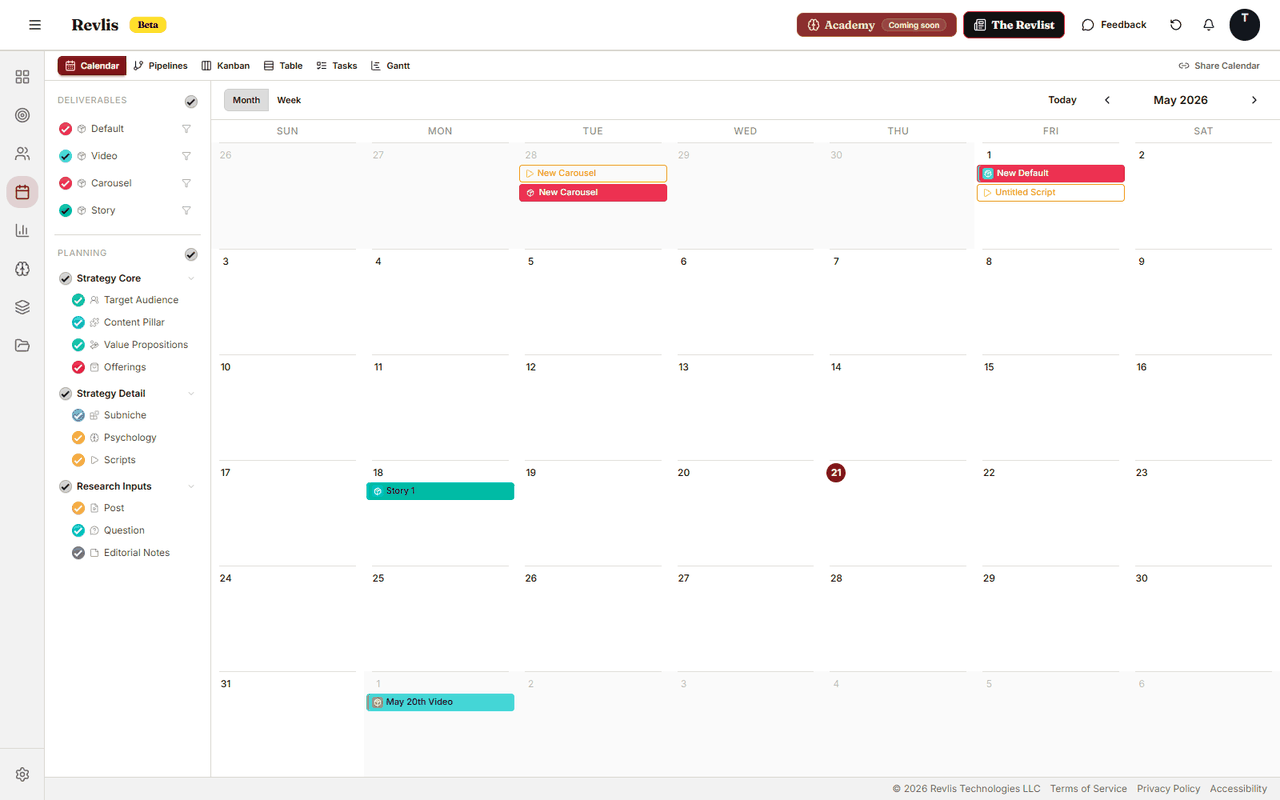
The Calendar helps you move content from plan to post. Use it to schedule deliverables, track where each piece is in production, attach scripts and assets, and share work with clients for review.
Everything in Calendar is scoped to the Active Brand.
Views
Six views help you look at the same content in different ways:
| View | Use it to... |
|---|---|
| Calendar | See scheduled deliverables on a month or week calendar. |
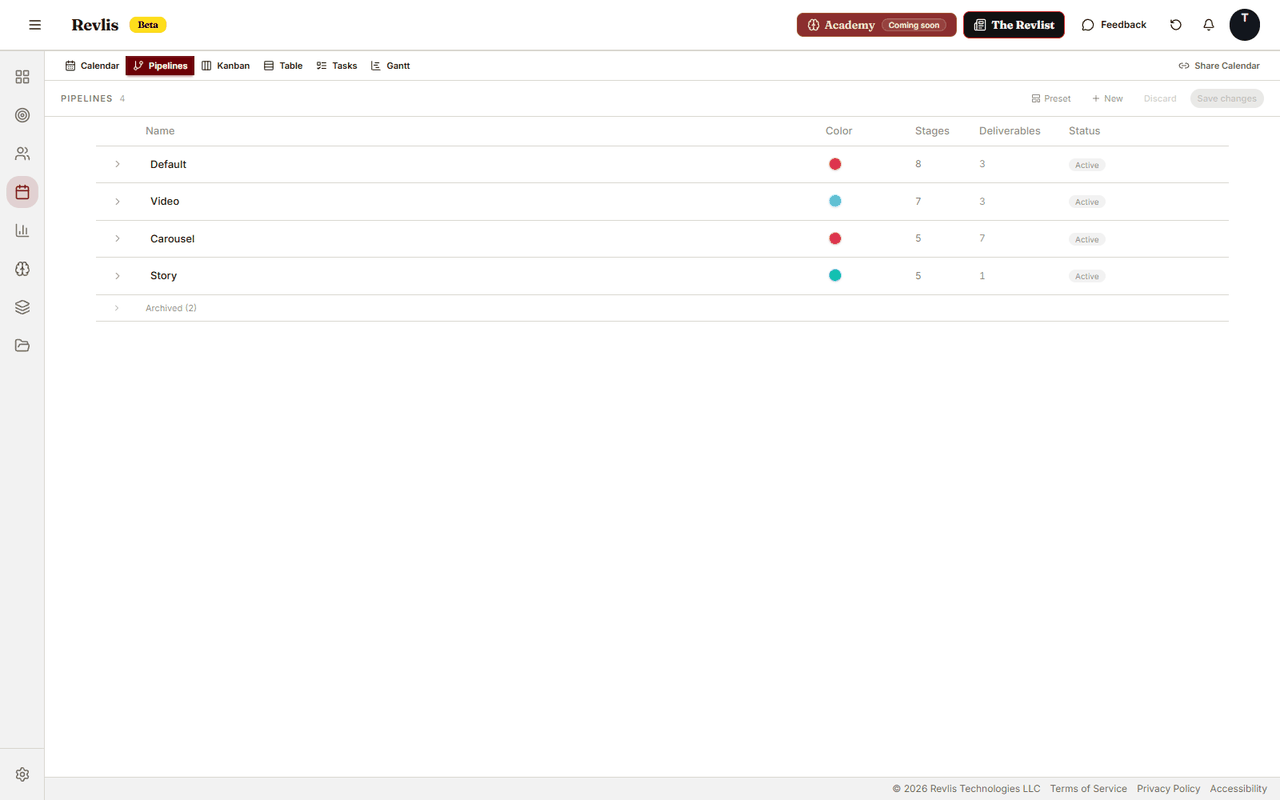
| Pipelines | Set up the steps your content moves through, such as scripting, filming, editing, review, and posted. |
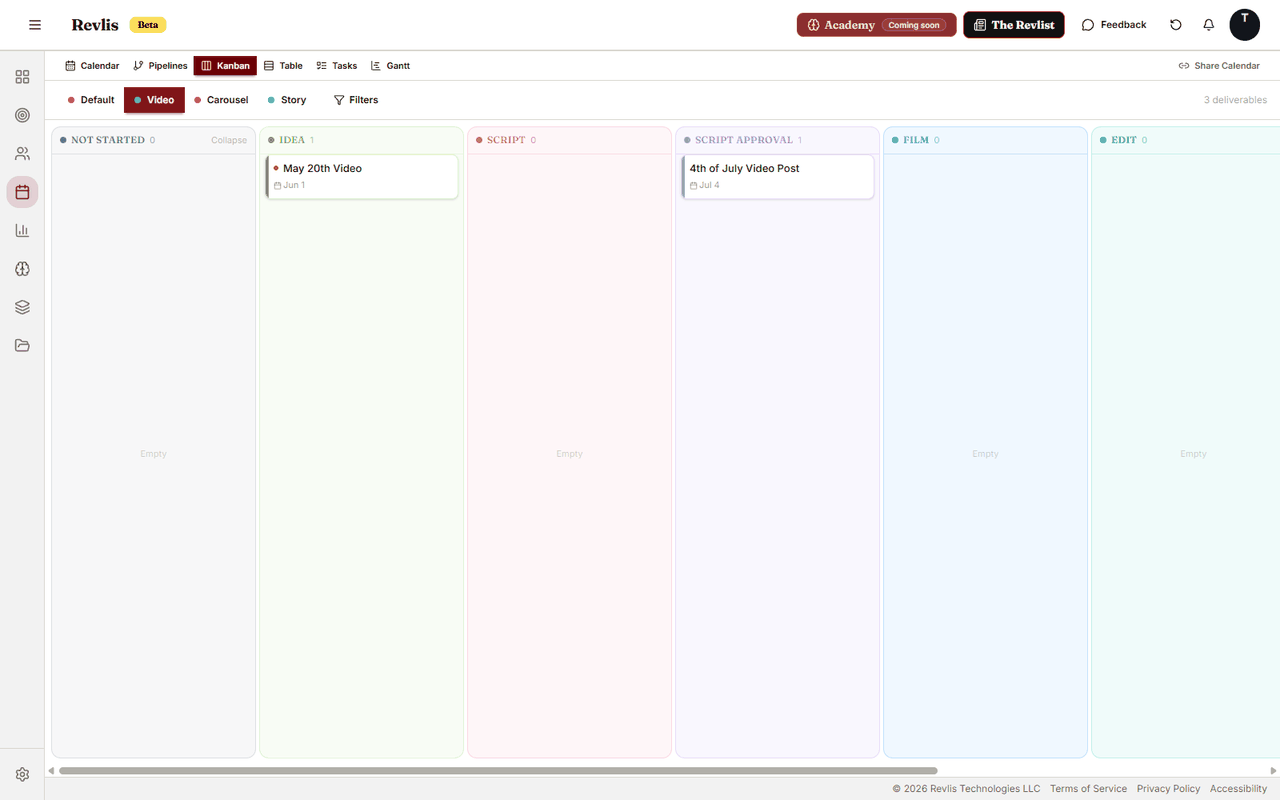
| Kanban | Move deliverables from stage to stage as work moves forward. |
| Table | Scan many deliverables quickly in one compact list. |
| Tasks | Review work inside one pipeline as a task queue. |
| Gantt | Check timing and due dates on a timeline. |
Kanban, Table, Tasks, and Gantt are scoped to one pipeline at a time. Use the pipeline buttons in those views to switch pipelines.
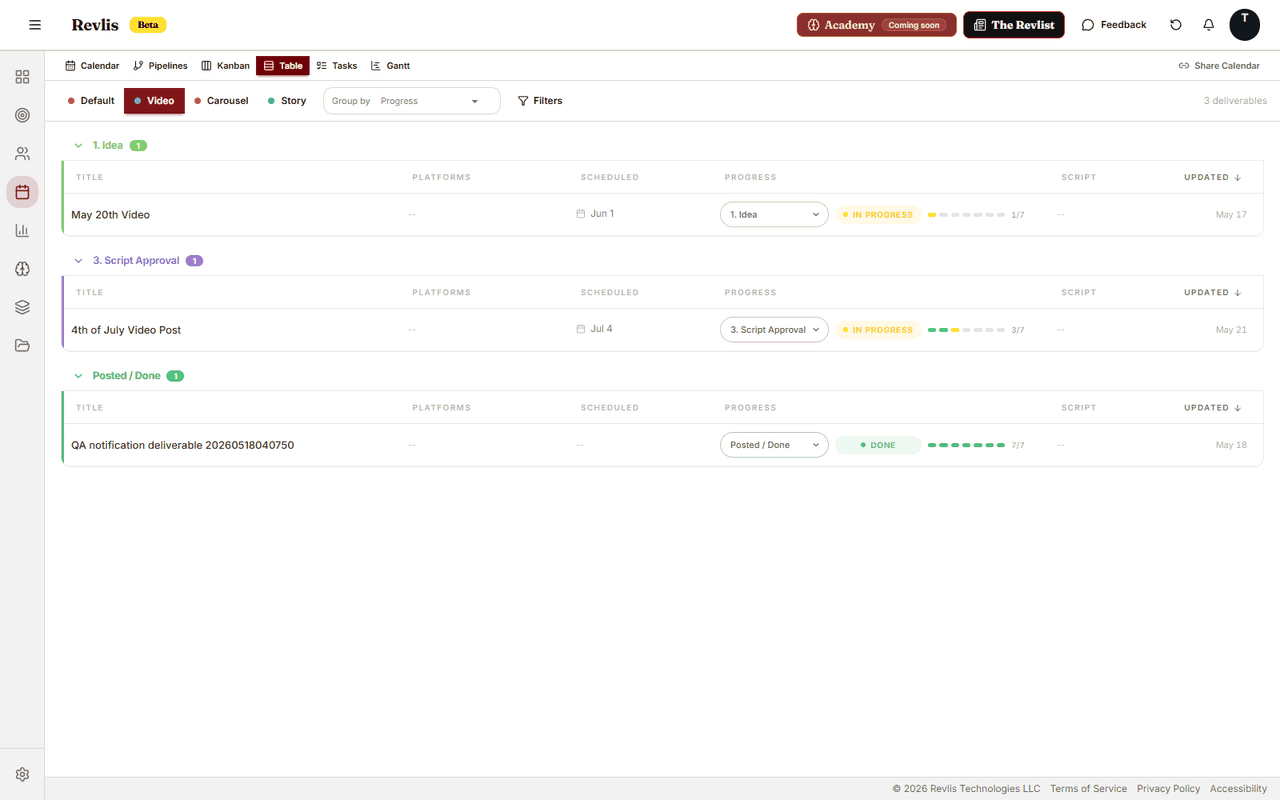
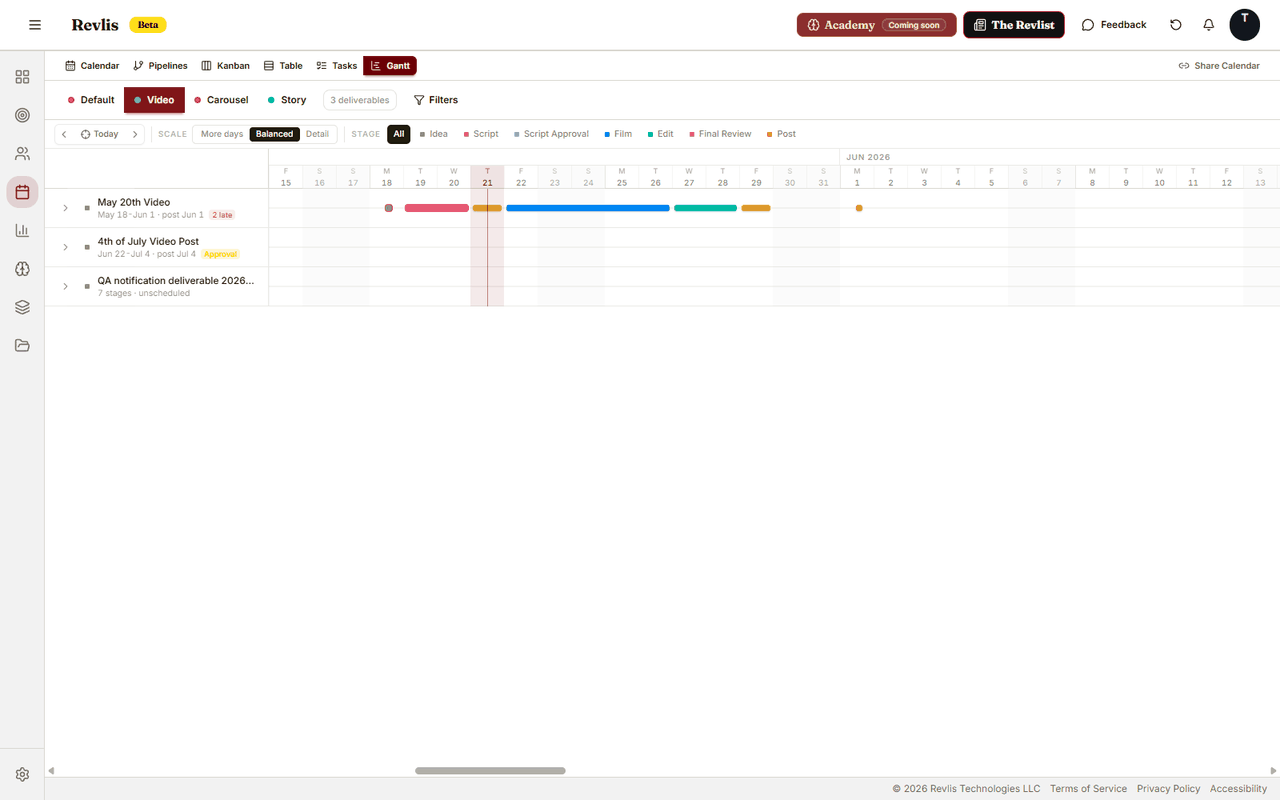
Pipelines
A pipeline is the set of steps for a type of content. For example, video content might move through scripting, filming, editing, approval, and posted.
Revlis includes starter pipelines for common content types, such as video, carousel, static posts, stories, and short-form text. You can adjust them from the Pipelines view to match how your team works.
Stage types
Stages can be work stages or approval stages.
A work stage is a normal production step, such as scripting, filming, editing, or asset prep.
An approval stage adds a review thread. When a deliverable reaches an approval stage, you or a client with the right share-link permissions can:
- Leave comments and feedback in the review thread.
- Approve the deliverable and move it forward.
- Request changes and send it back for revisions.
Approval and rejection paths can be configured in the pipeline. If no custom path is set, approval moves the deliverable to the next stage and a change request moves it to the previous stage.
Each request for changes increments the revision round for that approval stage. Revlis shows the current round on approval cards so you can see how many review cycles that stage has gone through.
Deliverables
A deliverable is one piece of content you are planning or producing. It can include:
- Title: the name of the piece.
- Channels: one or more platforms where you plan to publish the content.
- Scheduled date: when the deliverable is planned to post.
- Pipeline: the set of steps it belongs to.
- Current stage: where it is in that process.
- Caption: the post caption.
- Published URLs: links to the live posts after publishing.
- Linked script: a script from the Laboratory attached to the deliverable.
- Assets: files attached to the deliverable.
- Notes: internal context, instructions, or reminders.
Create a deliverable from the Calendar view by clicking a date and choosing a pipeline from the quick-add menu. On mobile, use the add deliverable flow.
Deliverable Workspace
Click a deliverable to open its workspace. This is where the details for that piece of content live.
| Tab | What it holds |
|---|---|
| Details | Caption, notes, channels, assets, due dates, posting status, linked script controls, published URLs, and edit actions. |
| Inspiration | Reference posts from Research. A deliverable can have up to four inspiration pins. |
| Activity | Stage completions, approvals, revision requests, script changes, and other deliverable events. |
| Chat | The conversation thread for collaboration and feedback. |
| Script | The linked Laboratory script. This tab appears after a script is linked or when you start writing a script from the deliverable. |
The deliverable title and scheduled date stay available in the workspace header.
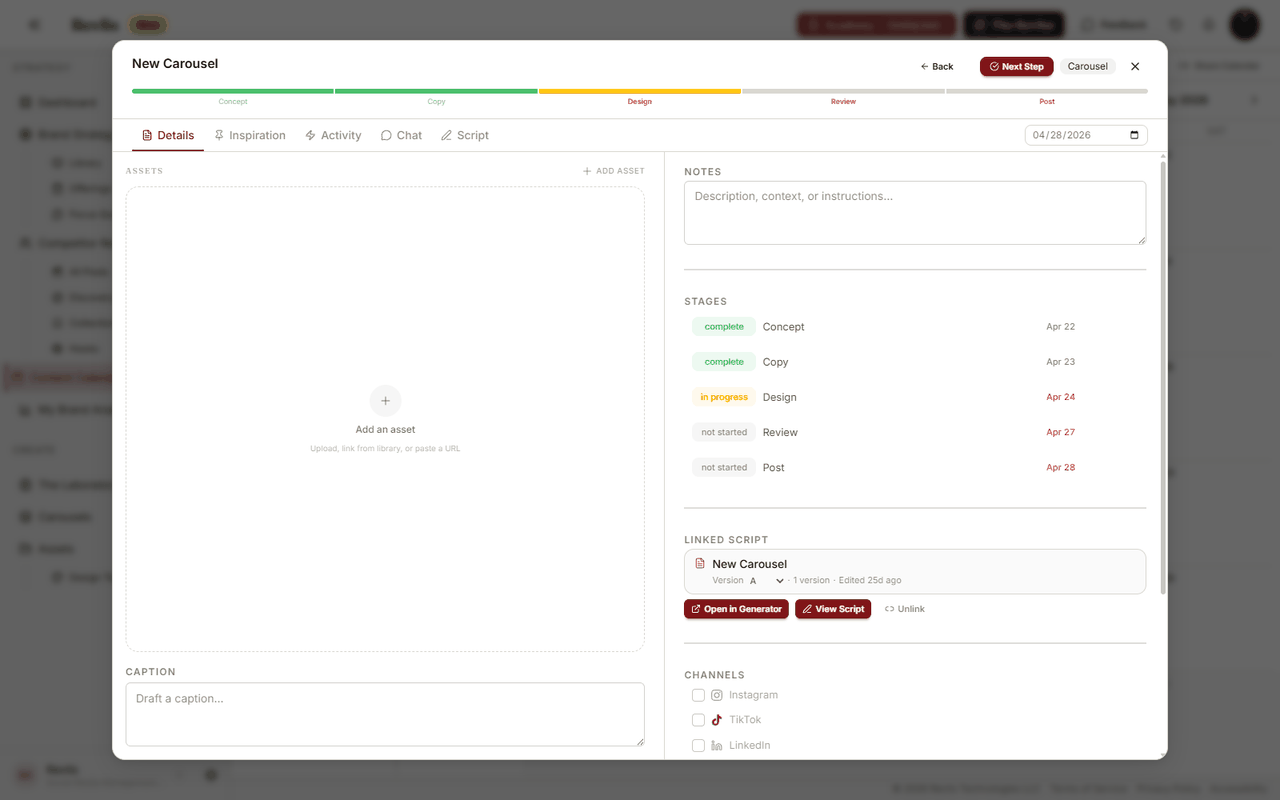
Linking a script
From the Details tab, you can write a new script for the deliverable or link an existing script. After a script is linked, you can choose the version attached to the deliverable, open it in the Laboratory, view it in the workspace, or unlink it.
Sharing
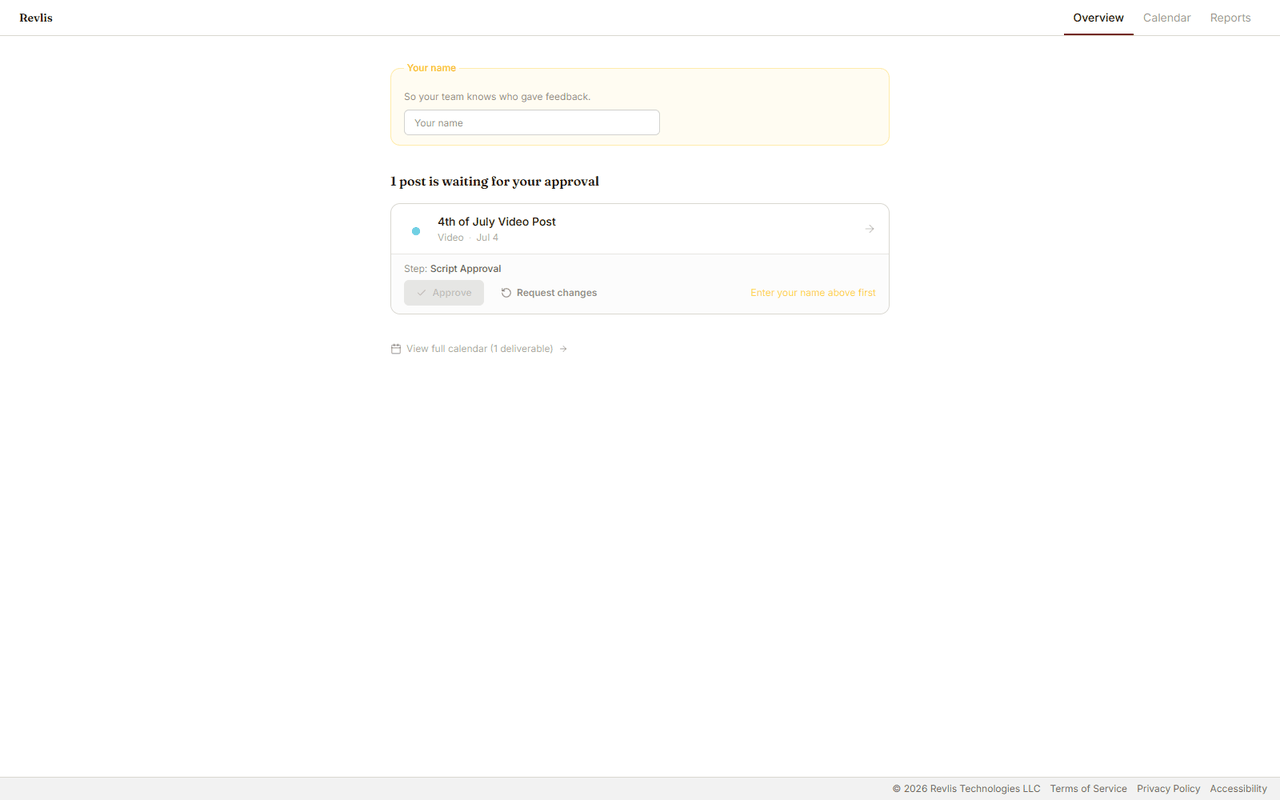
The Share Calendar button creates review links for clients. Clients can open the link without logging into Revlis.
When creating or editing a share link, you configure:
Content calendar: always included. By default, the shared view focuses on deliverables waiting for approval. You can choose to show all scheduled deliverables. Only deliverables currently in approval can be approved or sent back for changes.
Pipelines: choose which pipelines are visible when portal modules are available on your plan. Basic review links show the active calendar content.
Optional modules: available on higher-tier plans.
- Brand Overview shows a read-only snapshot of brand basics, content pillars, and audience profiles.
- Monthly Reports shows the latest analytics report for the brand.
Client permissions:
- Approve deliverables allows the client to approve deliverables that are waiting for approval.
- Leave comments allows the client to comment and request changes on deliverables that are waiting for approval.
Share links can have an expiry date. You can update, disable, delete, or create multiple links for different clients or stakeholder groups.