Carousels
Carousels helps you create multi-slide image posts for Instagram, LinkedIn, and similar formats. Start with a topic or connect existing content, then let Revlis draft a storyboard and generate slide images.
Everything in Carousels is scoped to the Active Brand.
Carousels and Design Templates appear only when carousel creation is enabled for your account. If the Create section does not appear in the sidebar, the feature is not currently available to you.
Review the storyboard before generating slide images. It is easier to adjust the message while the carousel is still text and prompts.
Carousel list
The Carousels home shows the Active Brand's carousels as thumbnail cards. Each card shows the cover image, title, last update, and slide count once slides exist.
Carousels can be archived. Archived carousels are hidden from the main view but not deleted. Use Show archived to view and restore them.
Creating a carousel
Carousels need a design template before they can be created. If the Active Brand does not have one yet, Revlis sends you to Design Templates first.
Click New Carousel to create a carousel with the Active Brand's default design template and open its workspace.
The workspace
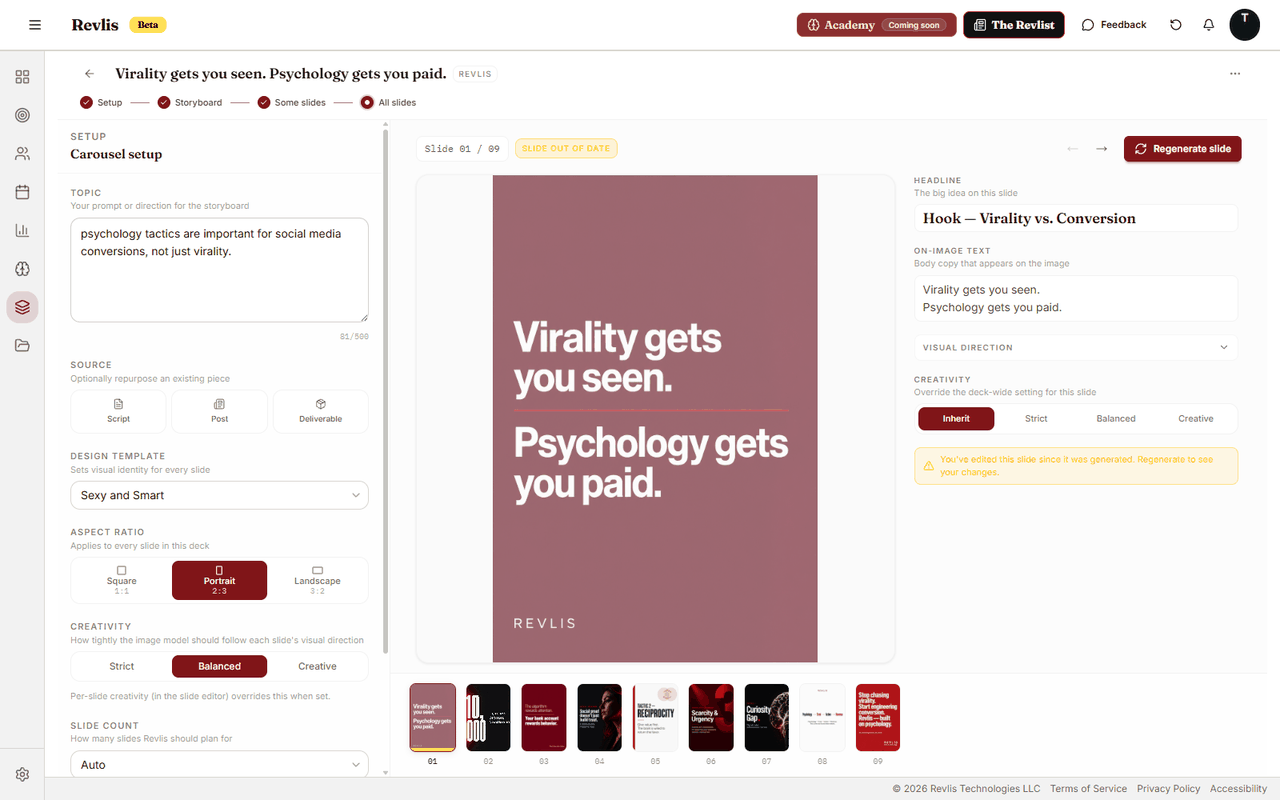
The workspace has setup controls on the left and the slide canvas on the right.
Setup Rail
Use the setup controls to tell Revlis what to make:
| Setting | What it controls |
|---|---|
| Topic | What the carousel should be about. |
| Source | Optional existing content to build from: a Laboratory script, Research post, or Calendar deliverable. |
| Design Template | The visual style Revlis should use for generated images. |
| Aspect Ratio | Square (1:1), Portrait (2:3), or Landscape (3:2). |
| Slide count | Auto, or a preset count: 5, 6, 7, 8, 9, 10, 12, 15, or 20. |
| Creativity | How closely Revlis should follow your direction: Strict, Balanced, or Creative. |
| Reference assets | Uploaded images or Assets library images that guide the visual style. |
Generating a storyboard
Once setup is complete, press Generate Storyboard. Revlis writes the slide-by-slide message first: titles, body text, and image prompts. Images are not generated yet, so you can review the story before spending time on visuals.
Review the storyboard before generating images. Edit any slide's title, text, or image prompt directly on the canvas. Rearrange slides with the move left / move right controls. When the message looks right, generate images slide by slide.
Storyboard canvas
After you generate a storyboard, the canvas shows all slides as thumbnails. Click a slide to view it full-size. Each slide has:
- Title and text: the copy that appears on the slide.
- Image prompt: the direction Revlis uses to generate the slide image. Edit this to steer the visual.
- Creativity override: overrides the carousel-level Creativity setting for this slide only. Set to Inherit to follow the carousel default, or choose Strict, Balanced, or Creative for this slide specifically.
Slides generate individually. You can regenerate any single slide without affecting the rest.
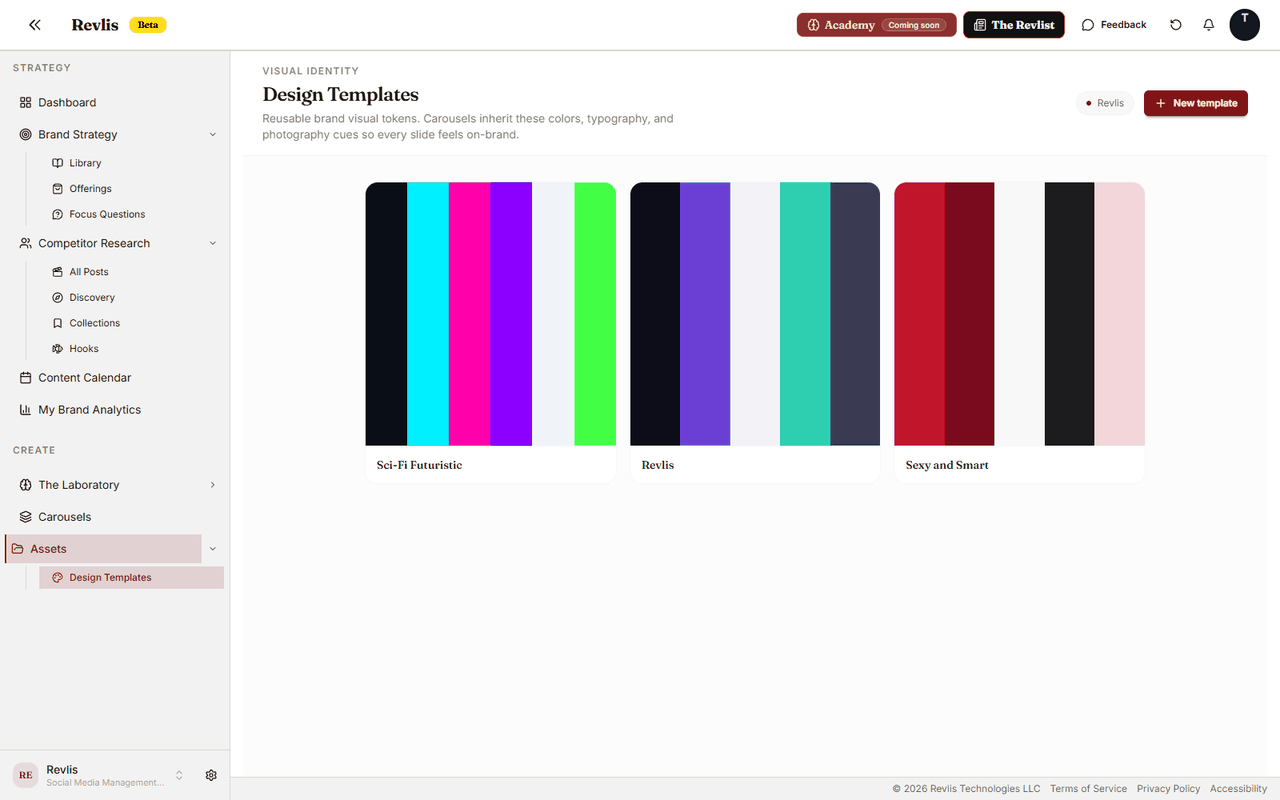
Design Templates
Design Templates define the visual style for a brand's carousel images. Each template has a name, a vibe description, and optional reference images. Revlis turns those details into reusable style guidance.
A brand can have multiple design templates. Set one as the default to use it automatically when creating new carousels.