The Laboratory
The Laboratory is where you create short-form video scripts with help from Revlis. Add the context you want the script to use, choose the style and settings, then generate an editable draft.
Everything in the Laboratory is scoped to the Active Brand.
Fast path: open the Laboratory, create a script, add one audience card, one content pillar card, and one question or offering. Then generate and edit the draft.
Script library
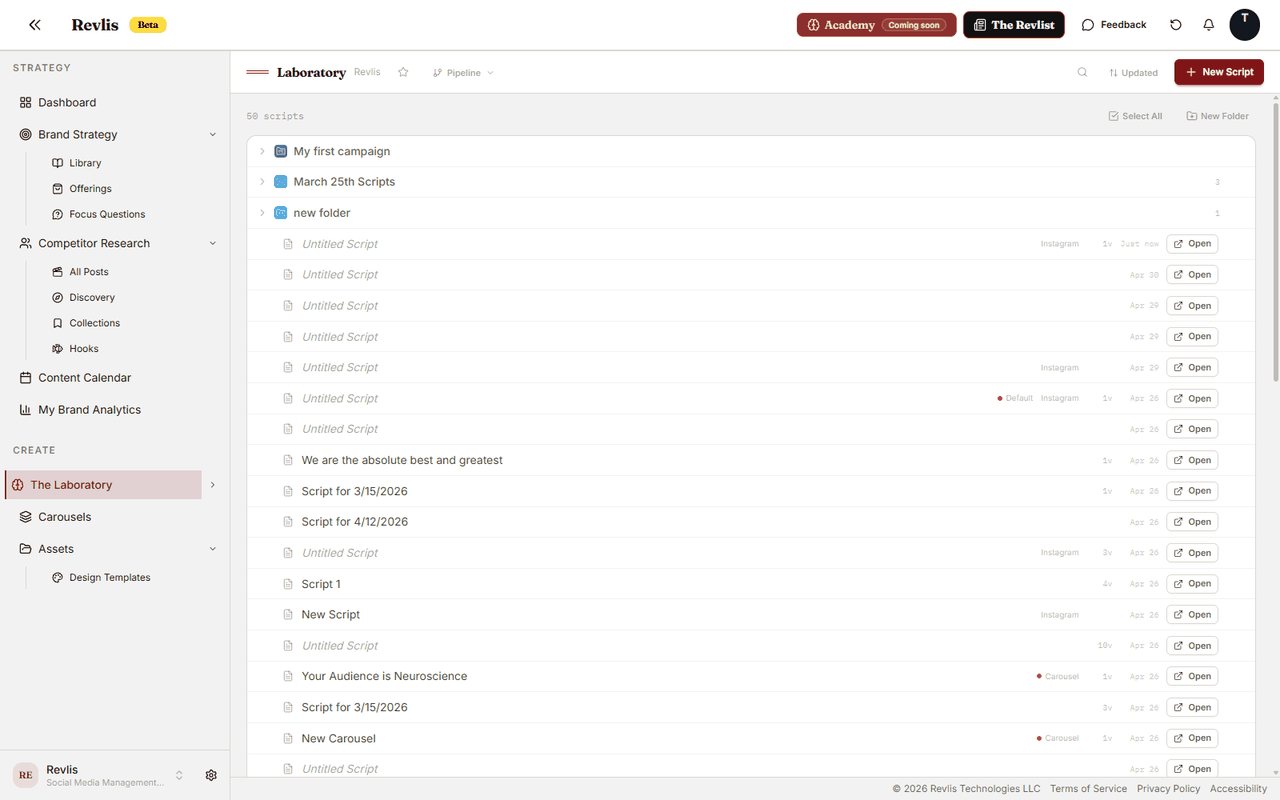
Click See all scripts in the Laboratory section of the sidebar to open the Active Brand's script library.
Each script shows its title, version count, last update, platform, and pipeline if it has one. Use folders, search, and filters when the library grows.
Filtering and sorting
Three simple views help you find scripts:
- All: every script for the brand.
- Starred: scripts you've starred.
- Archive: scripts you've sent to the archive.
You can also filter by pipeline, sort the list, and search by title, folder, pipeline, platform, or tag.
Folders
Organize scripts into folders. Folders can be nested. Create a folder with the folder icon in the toolbar, or drag a script onto an existing folder. Folders can be renamed and deleted.
Pipelines
Pipelines connect scripts to your production process in Calendar. Scripts linked to a pipeline show its name and color as a badge.
Starring and archiving
Star a script to keep it easy to find. Archive a script to remove it from the main library without deleting it. Archived scripts are still accessible through the Archive scope.
The canvas
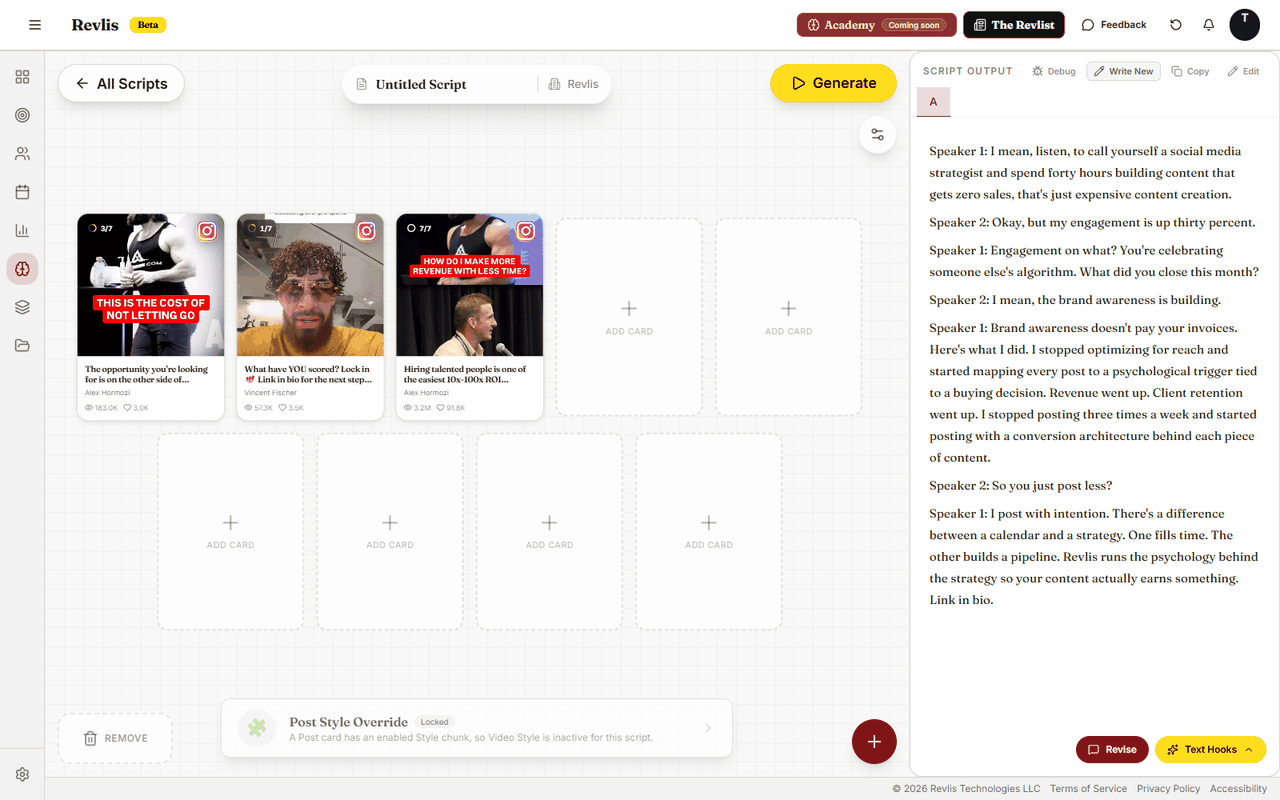
Click New script, open a recent script from the sidebar, or select a script from the library. The canvas is where you place the context Revlis should use.
At the top of the canvas is a name field where you set the script's title. The Active Brand name is shown alongside it.
Cards
Cards are pieces of context. A card can tell Revlis who the audience is, what question to answer, which offering to promote, which hook to use, or which post to learn from.
Add cards by pressing the + button in the bottom-right corner. This opens a picker with the following card types:
See all card types
| Card type | What it contributes |
|---|---|
| Brand | Brand story and positioning context |
| Target Audience | The audience segment this script should speak to |
| Content Pillar | The content category framing the script |
| Subniche | Your specific content niche |
| Focus Questions | Questions to address in the script |
| Value Propositions | Core reasons your audience chooses you |
| Offerings | The product or service being promoted |
| Post | An analyzed Research post used as a creative reference |
| Psychology | A psychology card (FOMO, Reciprocity, or Social Proof) |
| Hook | A hook template to pattern the opening on |
| Editorial Notes | Freeform brand notes |
Cards can sit anywhere on the canvas, but Revlis pays attention to the cards you place in slots at the top. Put the most important cards in slots before you generate.
The number of slots available depends on your plan.
For a simple first script, add one Target Audience card, one Content Pillar card, and either one Offering or Focus Questions card.
Post cards
Add a Post card from Research, from Collections, or with Use Blueprint on a Post Detail page. Revlis then uses parts of that post as inspiration. A post can carry up to eight components: Audio Hook, Visual Hook, Text Hook, Visual Style, Structure, Emotional Trigger, Target Audience, and Reusable Parts. Each post only carries the ones Revlis could extract from it.
Open the Post card to choose which parts to use. For example, keep Audio Hook and Structure enabled to learn from the opening and flow, but disable Visual Style when you want the selected Video Style to lead.
See Using a Blueprint for the complete workflow.
Offering cards
An Offering card carries the offering's selected features and benefits, its alternatives, and its buyer objections. Use Objection focus on the card to control which buyer concern the script addresses. See Offerings for the focus options and for how to add or generate objections.
Script length and settings
The settings panel lets you guide the output:
- Length: Short, Medium, or Long.
- Curiosity Gap: creates and resolves a clear reason to keep watching.
- Pattern Interrupt: adds a moment meant to catch attention.
- Simplify Concepts: makes the script easier to understand.
- Elaborative Processing: adds more depth and explanation.
- Interest Market Cap: makes the hook appeal to a wider audience while keeping the selected hook pattern.
- Bridge Hooks: adds small transitions that help the script keep attention.
Video style
Video Style sets the production and delivery pattern for the script. Pick a style in the Laboratory, or open the Video Styles library to browse Featured, Search, and Saved styles.
A Post card with its Visual Style component enabled also feeds the generated direction. Review both before generating.
Generating
Once your cards, settings, and Video Style are ready, click Generate. Revlis writes a script draft in the script view.
Each generation creates a new version, labeled A, B, C, and so on. Versions are tabs. Click between them to compare outputs.
To try another direction, change your cards or settings and generate again. Previous versions are preserved.
Editing
You can edit any version's text directly in the script view. Revlis saves your edits automatically.
Active script
Revlis tracks one script at a time as the active script, the one currently open in your workspace. When you click Use Blueprint on a Research post, Revlis adds the post to the active script if that script belongs to the Active Brand. If no matching active script exists, Revlis creates one and opens it in the Laboratory.
The active script is set automatically when you open a script from the library.
Saving and organizing
Scripts save automatically. To move or star a script, use the script's menu on the library home. To archive scripts, select them in the library and use the archive action.