Library
The Library stores reusable strategy cards for the Active Brand. Add or generate a card once, then use it in Brand Strategy and the Laboratory without rewriting the same context.
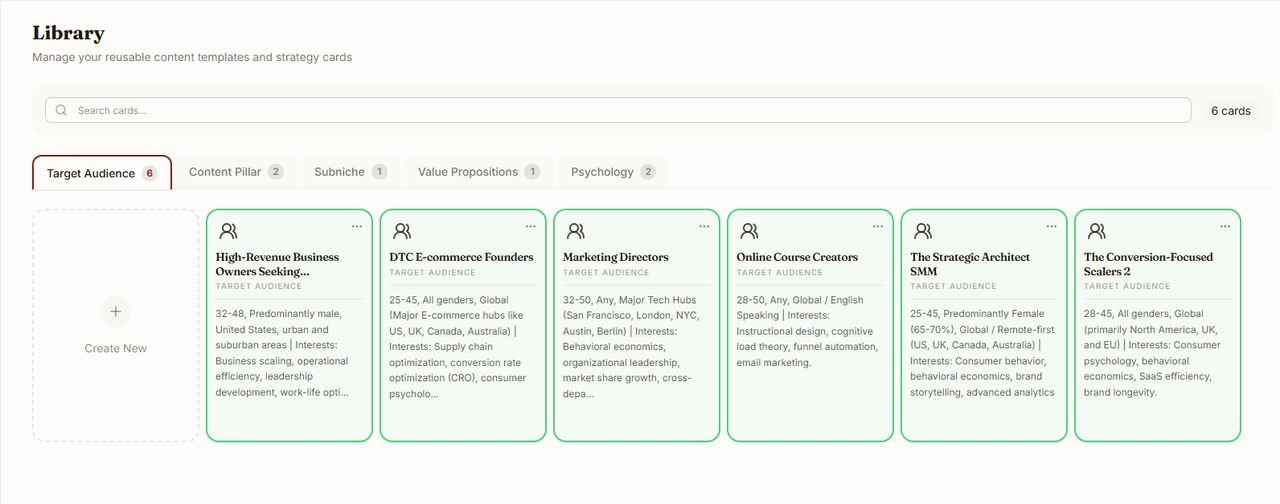
Categories
The Library is organized into five main tabs:
| Category | What to save there |
|---|---|
| Target Audience | The customer profiles the brand wants to reach. |
| Content Pillar | Repeatable themes for educational, inspirational, promotional, and entertainment content. |
| Subniche | Focused topics inside the brand's broader niche. |
| Value Propositions | The reasons someone chooses the brand or offering instead of another option. |
| Psychology | Persuasion notes grouped into Scarcity / FOMO, Reciprocity, and Social Proof. |
Editorial Notes are no longer a Library tab. Add them from the Laboratory when you need freeform script guidance.
Target audiences
Target Audience cards connect to the dedicated Audiences workspace. Use that workspace to create a blank profile, generate one from brand context, edit the full profile, or review its awareness journey.
Add an audience card straight to a script with Use in Laboratory.
Content pillars
Content pillars are grouped into four categories:
| Category | Best for |
|---|---|
| Educational | Teaching, how-to content, tips, and industry knowledge. |
| Inspirational | Motivation, vision, and transformation stories. |
| Promotional | Offers, proof, features, and case studies. |
| Entertainment | Humor, relatable content, and trends. |
You can create more than one pillar in each category. The Strategy Builder creates one default pillar per category, but you can add, remove, restore, and reorder pillars as the strategy develops.
Removing a default pillar from Brand Strategy does not delete its existing Library cards. You can restore the section later without losing the saved context.
Creating and editing cards
Every category offers two ways to add a card:
- Smart Create drafts the card from your brand context. Review and refine the result before you use it.
- Custom starts you from a blank card so you can write it yourself.
Review Smart Create results before using them. Edit the title and details so the card reflects the brand's actual strategy rather than a broad suggestion.
Click an existing card to edit it. Drag cards to reorder them within a category. Delete a card from its three-dot menu.
Using Library cards
Library cards appear in:
- Brand Strategy: arranged into the strategy view.
- The Laboratory: as the context that guides one script.
- Dashboard widgets: so strategy context stays visible while you work.
The Library follows the Active Brand. Switch brands to view and manage the cards for a different workspace.