Brand Management
A brand is the workspace Revlis uses to keep one client, business, or creator identity organized. Create a separate brand for each account you manage so strategy, research, scripts, content plans, and analytics stay separate.
What is a brand?
Everything in Revlis belongs to a brand.
What that means depends on how you use Revlis:
| If you are... | A brand is... |
|---|---|
| A social media manager | A client |
| An agency | An account |
| A creator | Your creator or personal brand |
| A business | Your own brand or business |
Regardless of how you use Revlis, the platform refers to all of these as brands. Create one brand per client, account, or identity you manage.
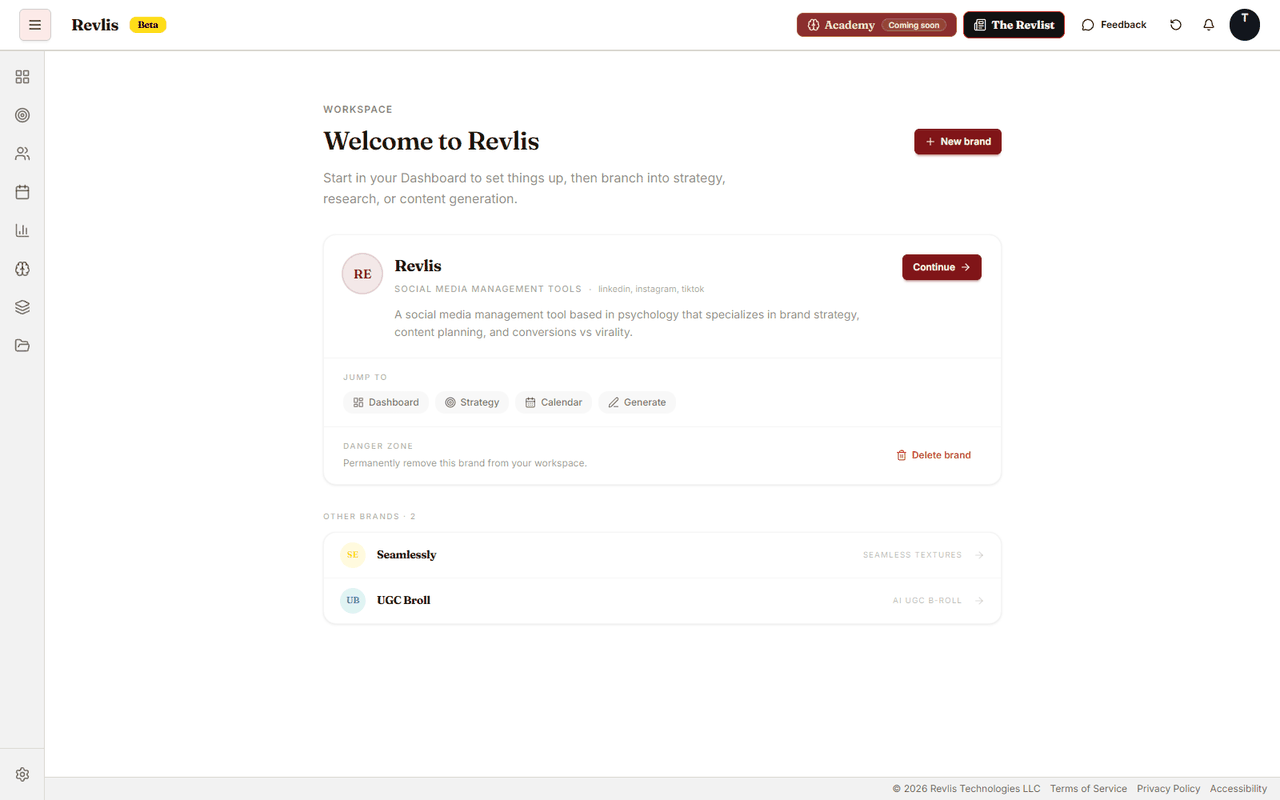
The brand management workspace
The brand management workspace is at revlis.app, the root page. It shows all your brands in one place and is where you create and delete them.
Active Brand
Revlis works with one Active Brand at a time. All of your data in Revlis is scoped per-brand. All strategy, research, scripts, and other output are generated in the context of the Active Brand.
You can change the Active Brand in two ways:
- Brand switcher: Click your brand name at the bottom of the sidebar and select a different brand.
- Brand management workspace: Select any brand from the list at revlis.app.
Check the Active Brand before creating scripts, research, assets, or calendar items. Revlis saves new work to whichever brand is active.
Create a brand
- Go to revlis.app.
- Click New brand.
- Enter a name and a description of what the brand does.
- Revlis will suggest a niche. Confirm it or adjust it.
The new brand is set as your active brand automatically.
Put more detail into your brand description than feels necessary. The more context Revlis has upfront, the more relevant your output will be from day one.
Edit a brand
- Go to revlis.app.
- Find the brand and open its Brand Strategy page.
- Update the description or niche and save.
Changes take effect immediately across the platform.
Delete a brand
- Go to revlis.app.
- Find the brand and open its settings.
- Click Delete brand and follow the prompts to confirm.
Deleted brands cannot be recovered. All associated data is permanently removed from our database.