Welcome to Revlis
Revlis is a social media assistant built for people who plan, create, and improve short-form content. It connects brand strategy, competitor research, audience intelligence, content planning, and scriptwriting in one workspace.
Most AI tools start with a blank prompt. Revlis starts with the context you choose: your brand voice, audiences, offerings, content pillars, research posts, hooks, and focus questions.
Who it's for
- Social media managers who need to scale output without losing context.
- Agencies that manage multiple brands and client workflows.
- Brands that want content tied to clear audience and sales strategy.
- Creators who want to turn research and ideas into repeatable content.
How it works
The core workflow has five stages:
| Stage | What you do |
|---|---|
| Strategize | Build a brand strategy, review the generated direction, and save the audiences, pillars, and other context you want to use. |
| Research | Track creators, study posts, browse hooks and Video Styles, and save useful examples. |
| Plan | Turn ideas into scheduled deliverables with scripts, assets, and review steps attached. |
| Create | Use the Laboratory to combine selected context and generate editable short-form video scripts. |
| Improve | Use Analytics, reports, and research patterns to make better decisions next time. |
You do not need to finish every area before using Revlis. Start with one brand and its strategy, then add research, planning, and analytics as your workflow grows.
Headline capabilities
- Strategy Builder: Turn public website pages and brand notes into a strategy you review before saving.
- Brand Strategy: Keep your voice, niche, subniches, audiences, content pillars, value propositions, and offerings connected.
- Competitor Research: Study how creators perform, who they reach, and which hooks, structures, styles, and messages drive their posts.
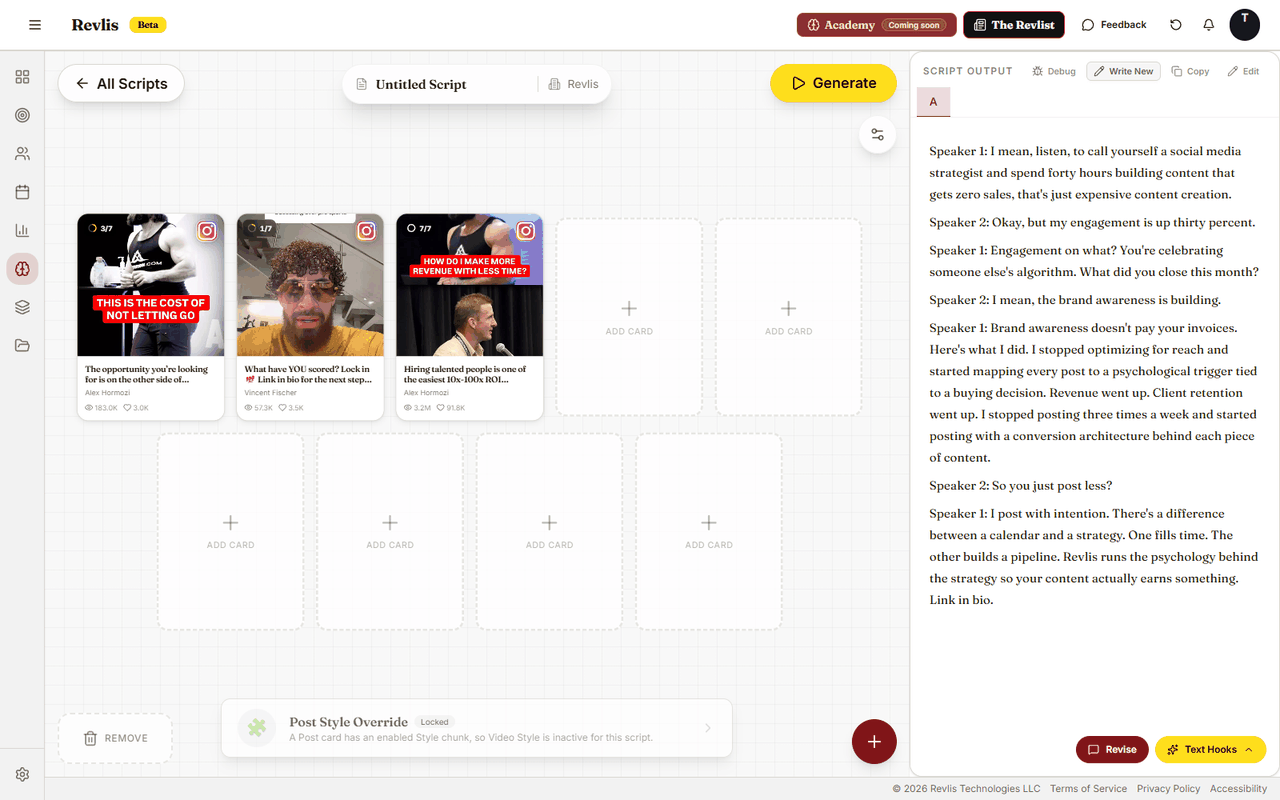
- The Laboratory: Combine the context you choose and generate editable scripts without starting from a blank prompt.
- Content Planning: Move deliverables through calendars, pipelines, approvals, and client review.
- Analytics: Track your own connected accounts and turn monthly performance into practical recommendations.
Getting started
Go to revlis.app and sign in with your Google account. Eligible accounts start with a 7-day free trial. Cancel before the trial ends to avoid the first paid charge. Your exact trial and billing dates are shown at checkout before you confirm.
From there, follow Quick Start to create your first brand and approve its strategy.
Looking for what's new? See the Changelog. Looking for what's coming? See the Roadmap.